# Users
# User list
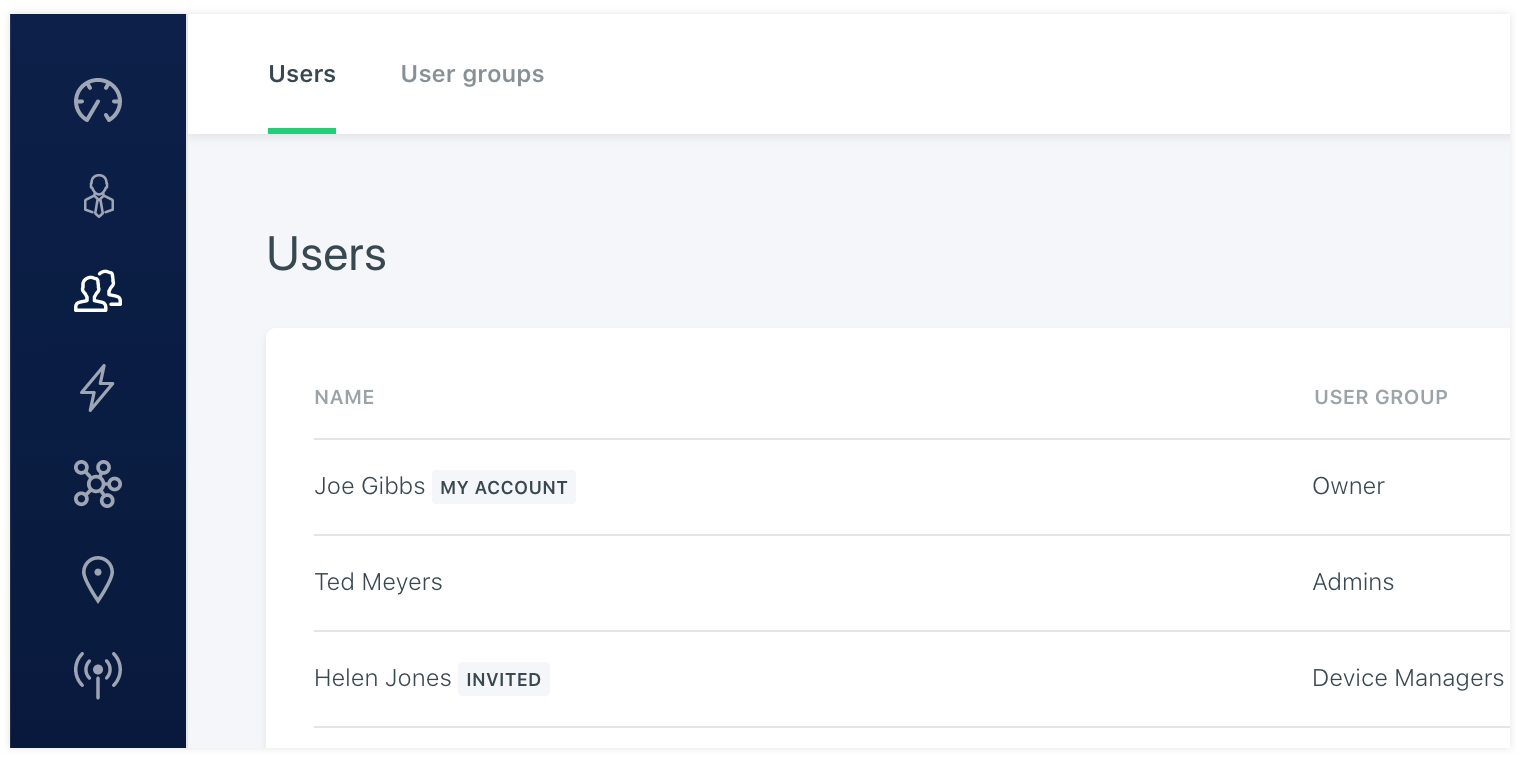
The users tab gives you info and insight about the current added users of the active account layer your are logged in at the moment. At top level this will be the vanity account but when logging in as a sub organisation you will see the users that are invited to that organisation. This way you can invite users on the vanity level, like for example your collegues or users that need a special role on the vanity level, like device managers. But when logged in under a organisation it is also possible to invite users. So for example you can create an organisation and then login as the oranisation and invite the admin user under this organisation account. This user will have full access over the made organisation account and can invite other users. He will also be able to create other organisations and login as to invite its own organisation admin or invite them under another roles he made.
# Invite user
On the user list you have the option to add a new user. This can be done byu the plus button in the top right corner. Then you can fill in the name and the email address of the user you want to invite. Also you have to select a certain user group so the user will get an authorisation level after it accepted the invite. When confirming the form the system will send an invite email to the user with the instructions on how to enroll to the platform. If a user has deleted this email or you want to remind them. It is possible to resend the invite by clicking the enveloppe icon behind the name of the user.

# Assign specific permissions
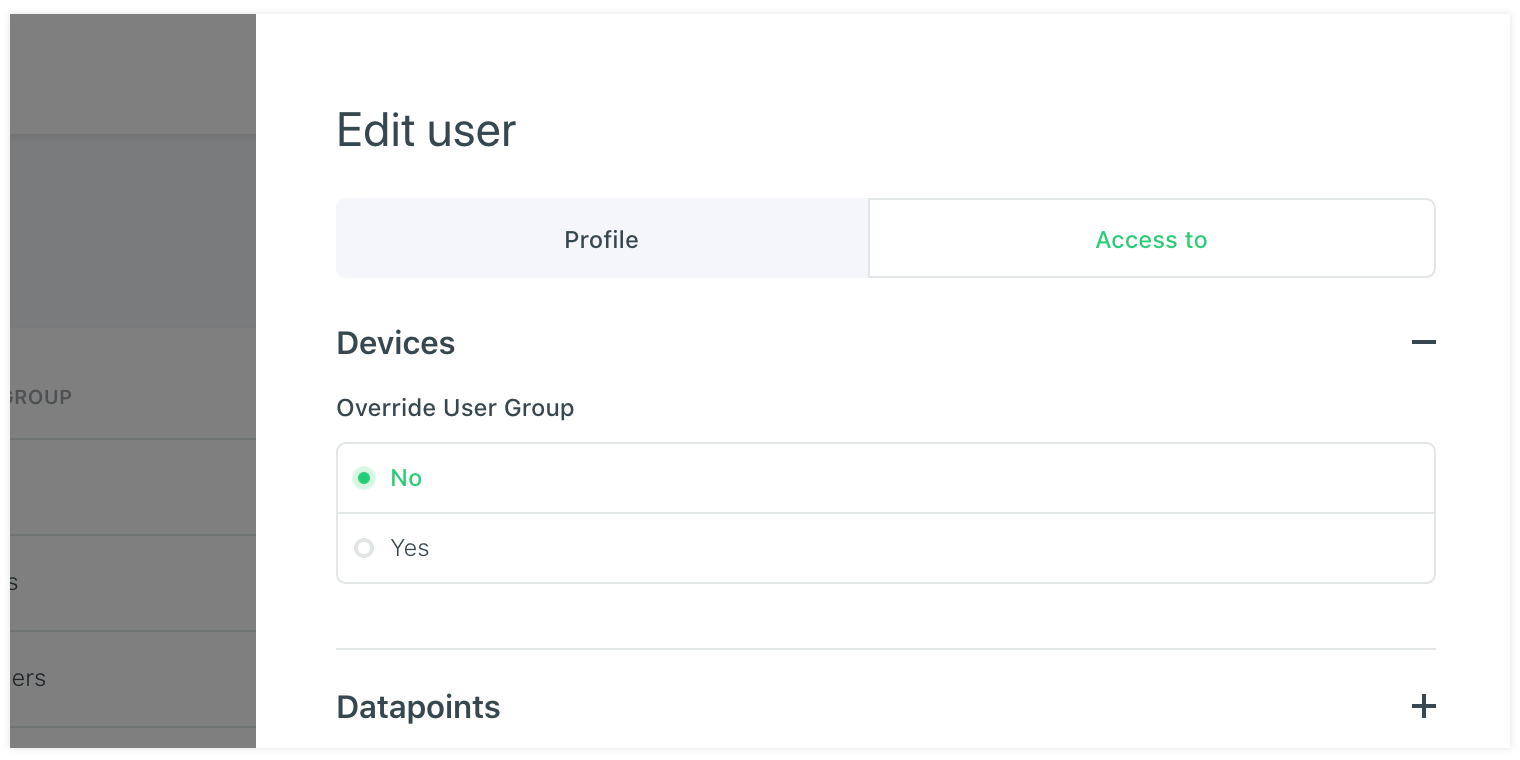
On the Access to tab under the user it is possible to give them special rights that override the usergroup it is assigned to. This can be helpfull somethimes to be able to give a user a little bit less or more access without the need of making a whole new user group.